
Disk size refers to the total storage capacity available on a physical or virtual storage device within a server. This capacity is typically measured in units such as gigabytes (GB), terabytes (TB), etc. It represents the maximum amount of data that the disk can store.
Disk usage, on the other hand, indicates how much of the total disk capacity is currently in use. It refers to the portion of the available storage space that is occupied by files, applications, the operating system, user data, logs, and other system-related information.
Understanding the disk size and usage on a server is crucial for managing available storage space effectively. Monitoring disk usage helps prevent running out of space, which can lead to system performance issues, inability to save new data, or even system crashes.
Administrators often use commands like df (disk free) and du (disk usage) in Unix-based systems to check the available disk space, the amount of used space, and which directories or files are consuming the most storage.
Regularly monitoring disk usage, removing unnecessary files, archiving or deleting old data, and managing storage resources effectively are essential practices to maintain a healthy and functional server environment.
There many reasons that you are not able to login your server WHM or cPanel to know the status of your website when it is not loading or running slow like that. This may be caused due to the disk space usage is already full. To know the usage of disk follow the below instructions, how to view the desk space and usage in SSH.
Table of Contents
1. Basic Usage:
Login /Access SSH
Enter the below command that will show the results of the disk information in bytes.
dfThe df command in Unix and Unix-like operating systems is used to display information about the disk space usage of file systems. It provides details about the amount of disk space available, used, and the total capacity of each mounted file system.

2. Human-Readable Output (-h):
And to check the total amount of disk space for the server, used and available disk space in gigabytes, type in the following command:
df -h3. df -k command:
The df -k command is used to display disk space usage in kilobytes (KB) for all mounted filesystems. When you run df -k, it provides information about each filesystem including the total size, used space, available space, percentage of used space, and mount point, all displayed in kilobytes.
And to check the total amount of disk space for the server, used and available disk space in kilobytes, type in the following command:
df -k4. df -m command:
The command df -m is used to display disk space usage in megabytes (MB) for all mounted filesystems. When you run df -m, it provides information about each filesystem including the total size, used space, available space, percentage of used space, and mount point, all displayed in megabytes.
If you want to check the total amount of disk space you have for the server, used and available disk space in megabytes, type in the following command:
df -m5. Show Inodes (-i):
If you want to check the file system inodes, type in the following command:
df -i6. Show File System Types (-T):
If you want to check the file system type of your system, use the following command:
df -T7. du command:
You can check disk usage by using the du command. This is most useful for a specific hosting account or a cPanel account.
du /home/username/public_html8. du -h command:
The du -h command shows results in “Human Readable Format “– sizes in Bytes, Kilobytes, Megabytes, Gigabytes etc. This will give you more specific results with the size of the file and its directory path.
du -h /home/username/public_htmlYou may also use this for a specific folder.
du -h /home/username/public_html/specific_folder9. du -sh command:
The command du -sh is used to display a summary of disk usage for the current directory while showing the output in a human-readable format.
du: Stands for “disk usage”. It’s a command-line utility used to estimate file and directory space usage.
-s: This option stands for “summarize”. When used with du, it displays only the total size of the specified directory or the total size of each argument if multiple directories are provided.
-h: This option stands for “human-readable”. It formats the output in a more readable format for users by using units such as kilobytes (K), megabytes (M), gigabytes (G), etc., depending on the size.
The command du -sh will show the disk usage summary of the directory.
du -sh /home/username/public_html10.The du –max-depth=1 command:
The du --max-depth=1 command is used to display disk usage information for the current directory and its immediate subdirectories up to a specified maximum depth level. This command calculates the size of each directory (including subdirectories and their content) within the specified depth level and shows the total disk usage for each.
This can also be sorted using the command below:
du --max-depth=1 | sort -n | awk 'BEGIN {OFMT = "%.0f"} {print $1/1024,"MB", $2}'2. To check disk size and usage on a system:
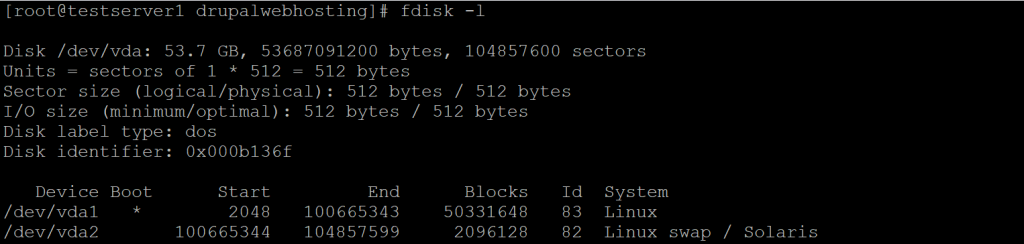
- Disk Size: Commands like
fdisk -lorlsblk(in Linux systems) can display information about available disk devices and their sizes.
- Disk Usage: Commands like
df -h(displays filesystem disk space usage) ordu -h(displays disk usage for files and directories) can show the amount of space used and available on mounted filesystems or within specific directories.


