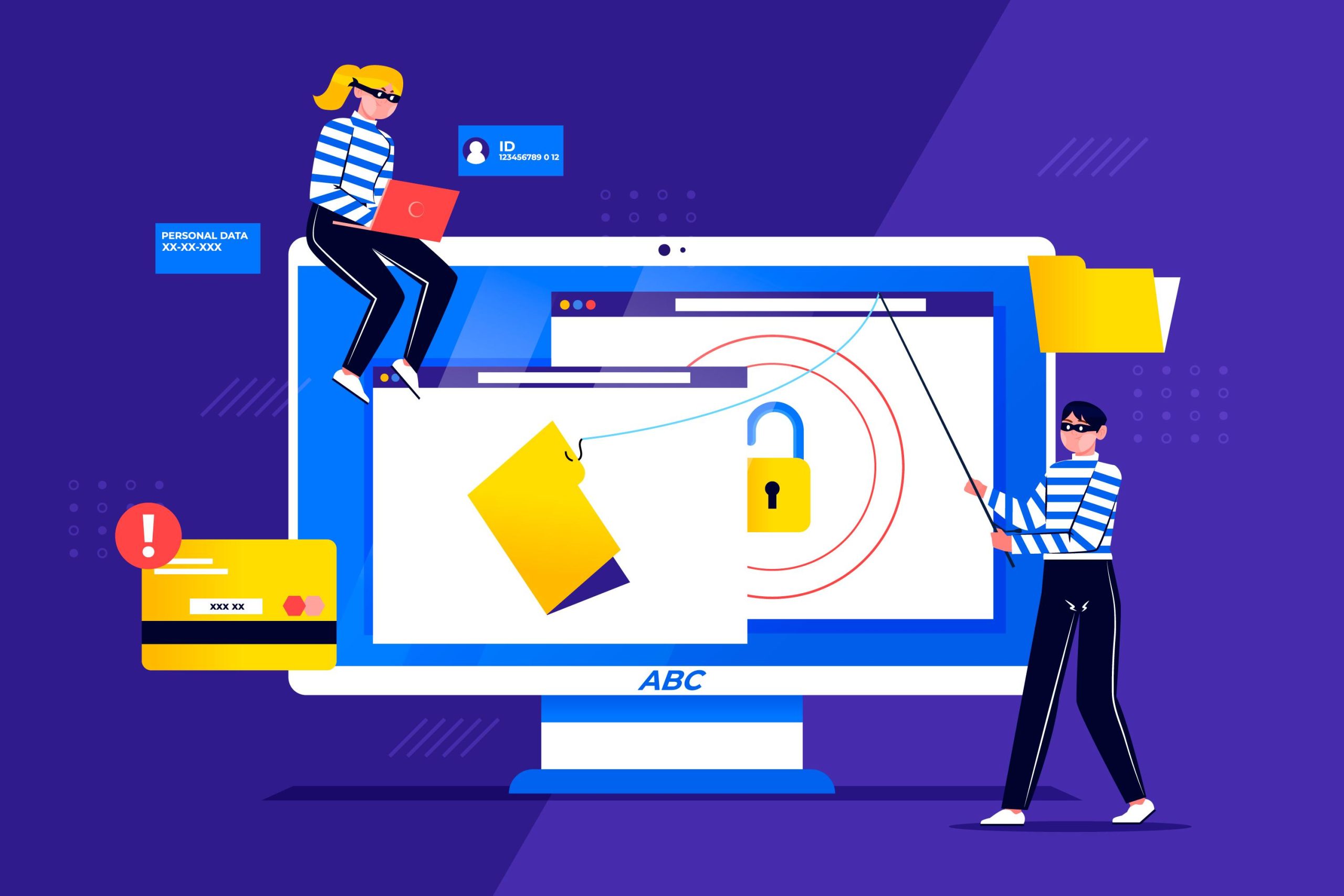
Anti-Spam Features is an effective way to protect your website and email services from spam and malicious content.
cPanel offers a range of built-in tools to help manage and reduce spam, keeping your site and inbox secure.
Table of Contents
Anti-Spam for Enhancing Site Security in cPanel
Here’s how you can leverage these features for optimal protection.
1. Understanding cPanel’s Anti-Spam Tools
cPanel includes several powerful anti-spam tools, such as SpamAssassin and Email Filters, designed to filter out unsolicited emails and prevent spam from cluttering your inbox.
- SpamAssassin: An open-source spam filter that uses multiple spam detection techniques to evaluate incoming emails.
- Email Filters: Customizable filters that allow you to block or redirect unwanted emails based on specific criteria like subject, sender, or content.
2. Activating SpamAssassin in cPanel
SpamAssassin is one of the most effective spam detection tools built into cPanel. It uses a scoring system to flag potential spam emails.
- How-To:
- Log in to cPanel and go to Email > Spam Filters.
- Toggle the Enable Apache SpamAssassin switch to activate the service.
- Set the spam score threshold (default is 5). Lower numbers increase the sensitivity to potential spam.
- Enable Auto-Delete Spam if you want SpamAssassin to automatically remove emails flagged as spam.
SpamAssassin analyzes email headers, content, and sender reputation to block suspicious emails before they reach your inbox.
3. Configuring SpamAssassin Settings
Customizing SpamAssassin allows you to fine-tune spam detection according to your needs.
- How-To:
- Go to Email > Spam Filters > Configure Settings.
- Add specific email addresses or domains to the Whitelist or Blacklist. Whitelisting allows certain emails to bypass the spam filter, while blacklisting blocks them.
- Adjust the Spam Score settings to control how aggressively emails are filtered.
These settings give you greater control over how spam is handled, ensuring important messages aren’t lost.
4. Using cPanel Email Filters
Custom email filters allow you to create specific rules for managing incoming emails, offering another layer of spam protection.
- How-To:
- In cPanel, go to Email > Global Email Filters or Email > Email Filters.
- Click Create a New Filter and set rules such as “From,” “Subject,” or “Body” to specify the conditions that define spam.
- Choose an action such as “Discard Message,” “Redirect to Email,” or “Deliver to Folder” based on the filter’s criteria.
Filters are particularly useful for blocking repetitive spam patterns or directing suspicious emails to specific folders.
5. Setting Up BoxTrapper
BoxTrapper is another anti-spam tool in cPanel that requires email senders to verify themselves before their emails are delivered.
- How-To:
- In cPanel, go to Email > BoxTrapper.
- Click Manage next to the email account where you want to enable BoxTrapper.
- Toggle the switch to enable it and customize the verification process by editing the default messages sent to senders.
This feature helps to significantly reduce spam by forcing unknown senders to verify themselves.
6. Managing Email Authentication
Email authentication protocols such as DKIM and SPF help prevent your domain from being used for email spoofing or phishing attacks.
- DKIM (DomainKeys Identified Mail): Adds a digital signature to outgoing emails, verifying that they were sent from your domain.
- SPF (Sender Policy Framework): Specifies which mail servers are authorized to send emails on behalf of your domain.
- How-To:
- Go to Email > Email Deliverability in cPanel.
- Click Manage next to your domain and ensure that SPF and DKIM are both enabled.
- Review the suggested DNS records and update them as necessary.
These protocols help protect your domain from being exploited by spammers and improve email deliverability.
7. Monitoring Spam with cPanel’s Mail Statistics
Regularly reviewing your email logs and spam statistics can help you understand how much spam is being blocked and identify any adjustments needed in your anti-spam settings.
- How-To:
- Go to Email > Track Delivery in cPanel.
- View the email log to see detailed information about email traffic, including the status of incoming and outgoing messages.
Monitoring your email statistics ensures your anti-spam measures are working effectively and allows you to adjust as needed.
8. Managing Quarantined Emails
If you have enabled the Auto-Delete Spam feature or set up email filters, some emails may be sent to a quarantine folder before being permanently deleted. You can review quarantined emails to ensure no legitimate messages are accidentally flagged as spam.
- How-To:
- Use your webmail client (e.g., Roundcube or Horde) to review your Spam or Junk folder.
- Whitelist any legitimate senders that may have been incorrectly flagged.
Regularly checking your spam folder ensures that important emails aren’t mistakenly filtered out.
9. Conclusion
By Securing Your Site with cPanel Anti-Spam Features, you can effectively minimize the impact of spam on your website and email services.
Using tools like SpamAssassin, email filters, and BoxTrapper, along with proper email authentication settings, will help keep your inbox clean and your domain secure.
Regular monitoring and fine-tuning of these settings are key to maintaining optimal security.


