Email routing refers to the process of determining the path that an email message takes from the sender to the recipient’s mailbox. It involves directing the email through various systems and servers until it reaches its final destination.
Hosting providers typically offer email services as part of their hosting packages, allowing users to create and manage email accounts associated with their domain names.
Routing process typically involves
The routing process typically involves several steps:
- Sender’s Mail Server: When someone sends an email, it is first routed through their email client or application to their outgoing mail server (SMTP server).
- DNS MX Records Lookup: The sender’s mail server performs a DNS (Domain Name System) lookup to find the Mail Exchange (MX) records for the recipient’s domain. MX records specify the mail servers responsible for receiving email on behalf of a domain.
- Routing to Destination Mail Server: Based on the MX records, the sender’s mail server routes the email to the recipient’s mail server. This may involve multiple hops through intermediary servers, depending on network configurations.
- Recipient’s Mail Server: The recipient’s mail server receives the email and performs any necessary checks, such as spam filtering or virus scanning.
- Delivery to Recipient’s Mailbox: Once the email passes through the recipient’s mail server checks, it is delivered to the recipient’s mailbox, where it becomes accessible to the recipient through their email client or webmail interface.
Email routing can be influenced by various factors, including DNS configurations, mail server settings, spam filtering policies, and routing rules set up by email administrators. Efficient email routing ensures timely and reliable delivery of email messages across the internet.
In DirectAdmin, email routing refers to the process of directing incoming emails to their appropriate destinations based on predefined rules. This involves determining how emails should be handled and delivered within the mail server environment. Email routing configurations can specify actions such as forwarding emails to specific addresses, delivering emails to local mailboxes, or routing emails to remote servers.
Common scenarios of email routing configuration
Here are some common scenarios where email routing configurations might be necessary:
- Local Mail Delivery: Directing emails to local mailboxes hosted on the same server.
- Forwarding: Automatically forwarding incoming emails to other email addresses.
- Remote Mail Servers: Routing emails to external mail servers, such as when using a third-party email service provider.
- Catch-All Address: Specifying an address to receive emails sent to non-existent or misspelled addresses within a domain.
- Backup Mail Servers: Configuring backup mail servers to handle emails when the primary mail server is unavailable.
- Spam Filtering: Routing emails through spam filtering services or software before delivery.
DirectAdmin provides tools and interfaces to manage email routing configurations, allowing server administrators to customize email handling according to their requirements. By configuring email routing effectively, administrators can ensure efficient and reliable email delivery for users hosted on the DirectAdmin server.
Manage email routing in DirectAdmin
In DirectAdmin, email routing settings are typically managed through the Exim configuration. Here’s how you can access email routing settings in DirectAdmin:
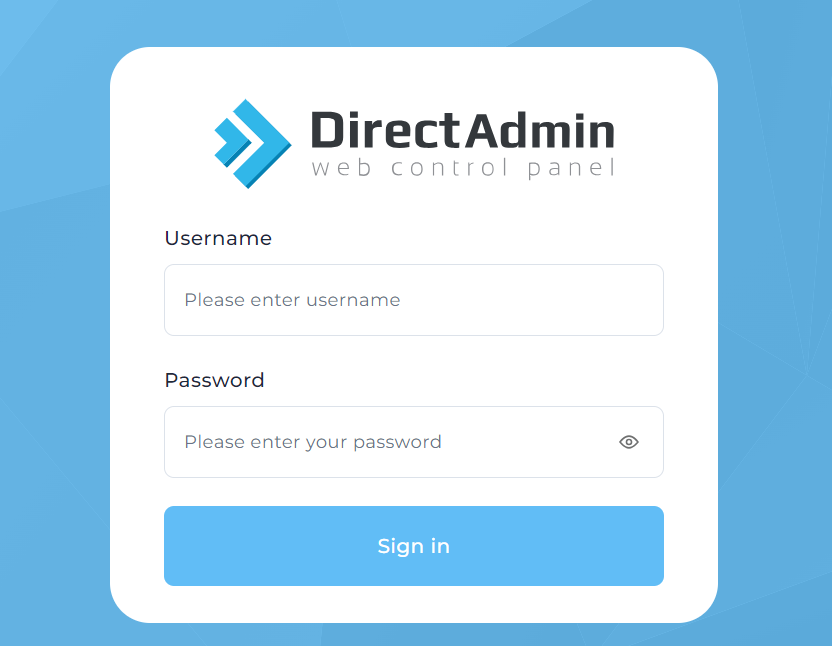
Log in to DirectAdmin: Go to your DirectAdmin control panel and log in using your credentials.
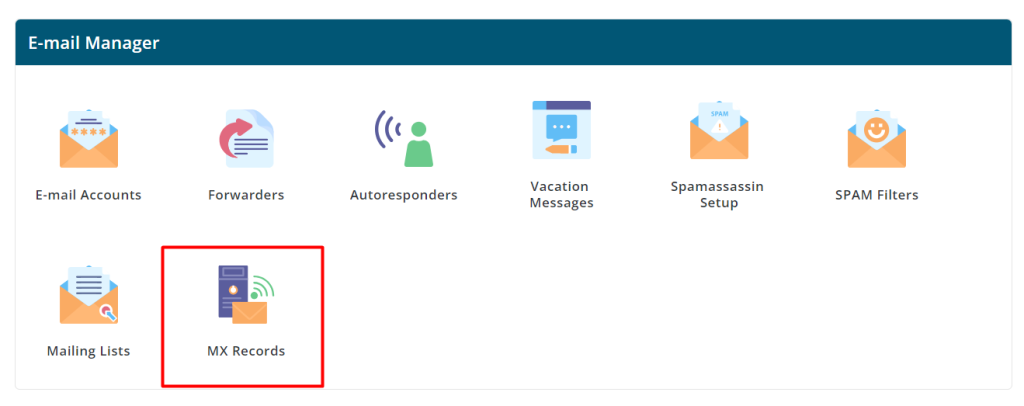
Navigate to MX records: Once logged in, find and click on the “MX records” or similar option. This is where you can access and edit the mail records settings.
Access Email Routing Settings: This is where you can specify how emails should be routed / records modified based on various conditions like domain, user, etc.
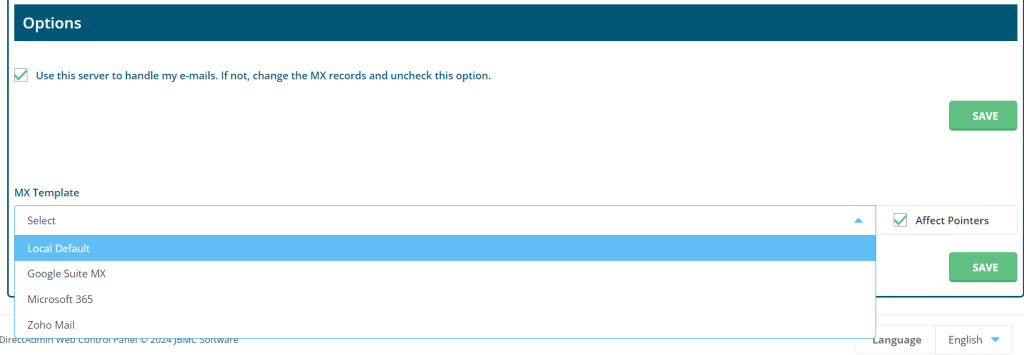
Configure Email Routing: Depending on your requirements, you can set up email routing rules.
Save Changes: Once you’ve configured the email routing settings according to your preferences, make sure to save your changes within the Exim Configuration Editor.
Restart Exim Service (if needed): In some cases, changes to Exim configuration may require restarting the Exim service for the changes to take effect. Look for an option to restart Exim within the DirectAdmin control panel or use SSH to access the server and restart the Exim service manually.
Remember to be cautious when making changes to email routing settings, as incorrect configurations could lead to mail delivery issues. If you’re unsure about any specific settings or their implications, it’s a good idea to consult DirectAdmin documentation or seek assistance from your hosting provider.


