
A WordPress plugin is a piece of software that can be added to a WordPress website to extend its functionality or add new features. Plugins are designed to integrate seamlessly with WordPress and can be installed, activated, and deactivated easily through the WordPress dashboard.
Plugins can range from simple tools like contact forms or social media sharing buttons to complex applications such as e-commerce platforms or membership systems.
WordPress plugins are software components that can be installed on WordPress websites to add new features, functionalities, or customize existing ones. When it comes to web hosting, WordPress plugins play a significant role in extending the capabilities of your WordPress site.
Table of Contents
WordPress plugins related to web hosting
Here’s how plugins are related to web hosting:
- Enhanced Functionality: Web hosting provides the infrastructure for your WordPress site to exist on the internet. While WordPress itself offers a range of features out of the box, plugins allow you to extend its functionality in countless ways. Whether you need to add e-commerce capabilities, enhance SEO, improve security, or integrate with third-party services, there’s likely a plugin available to help you achieve your goals.
- Server Resources: Some plugins may require more server resources than others. For instance, plugins that handle caching, image optimization, or security scans might consume additional CPU or memory resources. Therefore, it’s essential to choose plugins wisely, especially if you’re on a shared hosting plan with limited resources.
- Performance Optimization: Certain plugins can help optimize your site’s performance by caching content, minifying CSS/JavaScript files, or optimizing images. These optimizations can help reduce page load times and improve the overall user experience, which is crucial for retaining visitors and improving search engine rankings.
- Security: Security plugins are essential for protecting your WordPress site from malware, hacking attempts, and other security threats. These plugins often provide features such as firewall protection, malware scanning, login security, and activity monitoring to help keep your site secure. Ensuring that your web hosting environment is secure and up-to-date is also crucial for overall site security.
- Backup and Restore: Backup plugins allow you to schedule regular backups of your WordPress site and its data. In the event of a disaster or data loss, these backups can be crucial for restoring your site to a previous state. Many web hosting providers also offer backup solutions as part of their hosting packages, but using a dedicated backup plugin gives you more control and flexibility.
Overall, WordPress plugins are an integral part of managing and optimizing your WordPress site within a web hosting environment. By carefully selecting and managing plugins, you can enhance your site’s functionality, performance, security, and user experience. However, it’s essential to strike a balance and avoid installing too many unnecessary plugins, as this can potentially impact your site’s performance and security.
WordPress plugins performing tasks
WordPress plugins can perform a wide variety of tasks, including:
- Adding new features: Plugins can add features such as contact forms, e-commerce functionality, social media integration, SEO optimization tools, and more.
- Enhancing existing functionality: Plugins can enhance existing features of WordPress, such as improving performance, security, or the user interface.
- Customizing appearance: Plugins can change the appearance of a WordPress site by adding new themes, customizing CSS styles, or providing additional layout options.
- Managing content: Plugins can help with content management tasks, such as creating custom post types, organizing content with taxonomies, or adding editorial workflows.
- Optimizing performance: Plugins can optimize a WordPress site for speed and performance by caching content, compressing images, or minifying CSS and JavaScript files.
- Security: Plugins can enhance the security of a WordPress site by adding features such as two-factor authentication, firewalls, or malware scanning.
WordPress plugins are developed by a diverse community of developers and are available both for free and for purchase from the official WordPress Plugin Directory as well as third-party marketplaces. Users can search for and install plugins directly from the WordPress dashboard, making it easy to add new functionality to their websites without needing to write any code themselves.
Disabling WordPress plugin in cPanel
Disabling a WordPress plugin via cPanel is a straightforward process. Here’s a step-by-step guide:
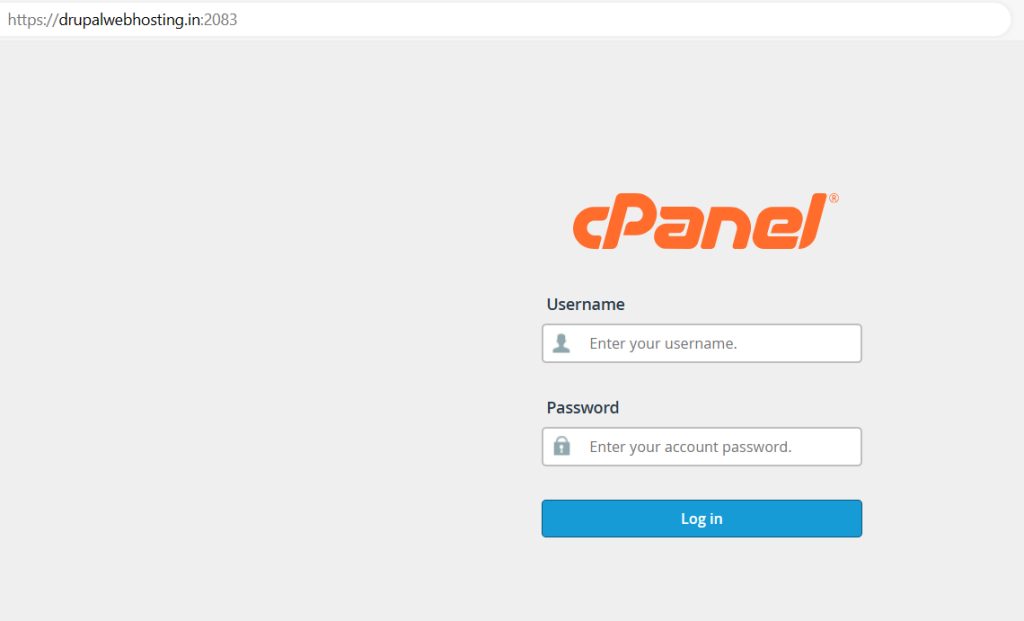
Access cPanel: Log in to your cPanel account. This is typically done by visiting your web hosting provider’s website, logging in with your credentials, and navigating to the cPanel dashboard.
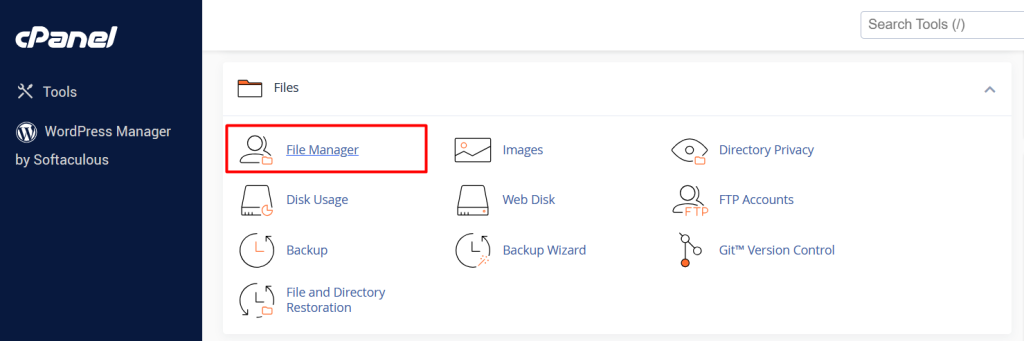
Locate File Manager: Once logged in, find the “File Manager” icon or option. This is usually located under the “Files” section of cPanel. Click on it to open the File Manager.
Navigate to WordPress Directory: In the File Manager, navigate to the directory where your WordPress installation is located. This is often in the “public_html” directory or a subdirectory within it, depending on how your hosting environment is set up.
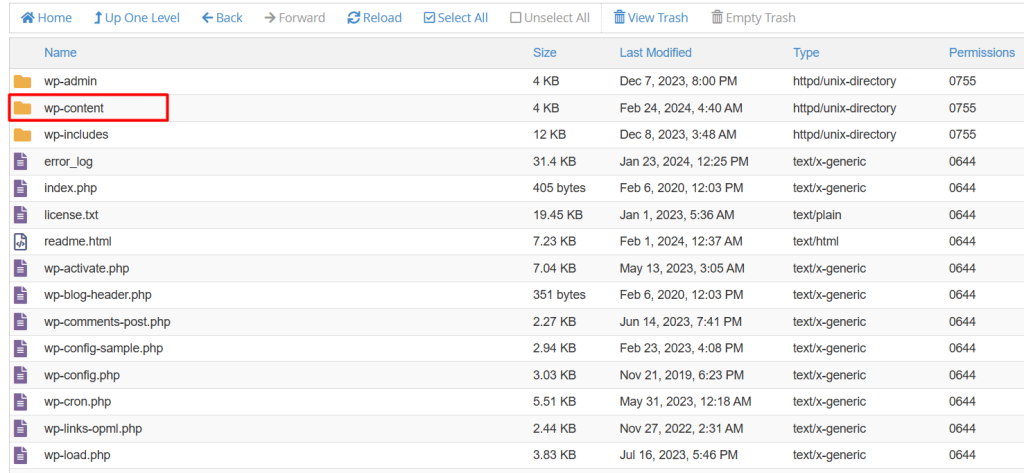
Find the Plugins Folder: Within your WordPress directory, locate the “wp-content” folder. Inside “wp-content,” you’ll find another folder called “plugins.” Click on the “plugins” folder to open it.
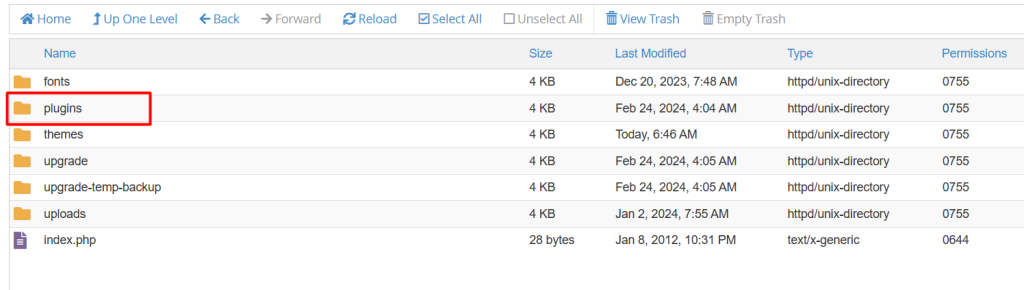
Locate the Plugin to Disable: In the “plugins” folder, you’ll see a list of folders, each representing a plugin installed on your WordPress site. Find the folder corresponding to the plugin you want to disable.
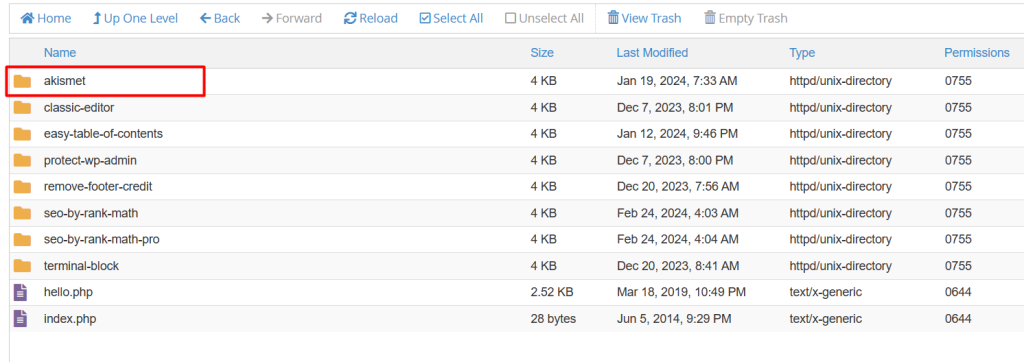
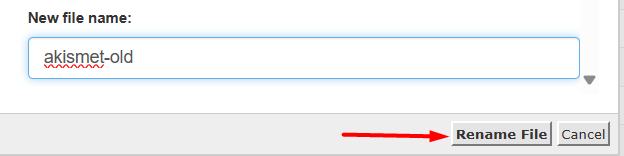
Rename the Plugin Folder: To disable the plugin, you can simply rename its folder. Right-click on the folder representing the plugin, then select “Rename” from the menu. You can add “_disabled” or any other text to the end of the folder name to deactivate the plugin.
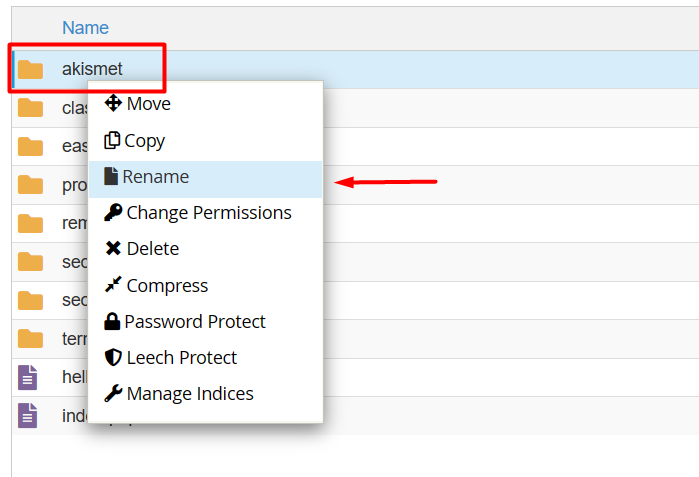
Renamed with any text.
Verify: Once you’ve renamed the plugin folder, visit your WordPress website to ensure that the plugin is now disabled. You should no longer see its functionality active on your site.
Re-enable if Necessary: If you decide you want to re-enable the plugin in the future, you can simply rename the folder back to its original name.
That’s it! You’ve successfully disabled a WordPress plugin via cPanel. Remember to exercise caution when making changes to your site’s files, and always back up your site before making significant modifications.


